How to find your strategies
Let Options Vault group your trades into wheels, covered calls, cash-secured puts and LEAPs, each with its own premium and P&L.
3 steps · 21-second video · works on the web and on iPhone
21 seconds, captions on screen
- 1
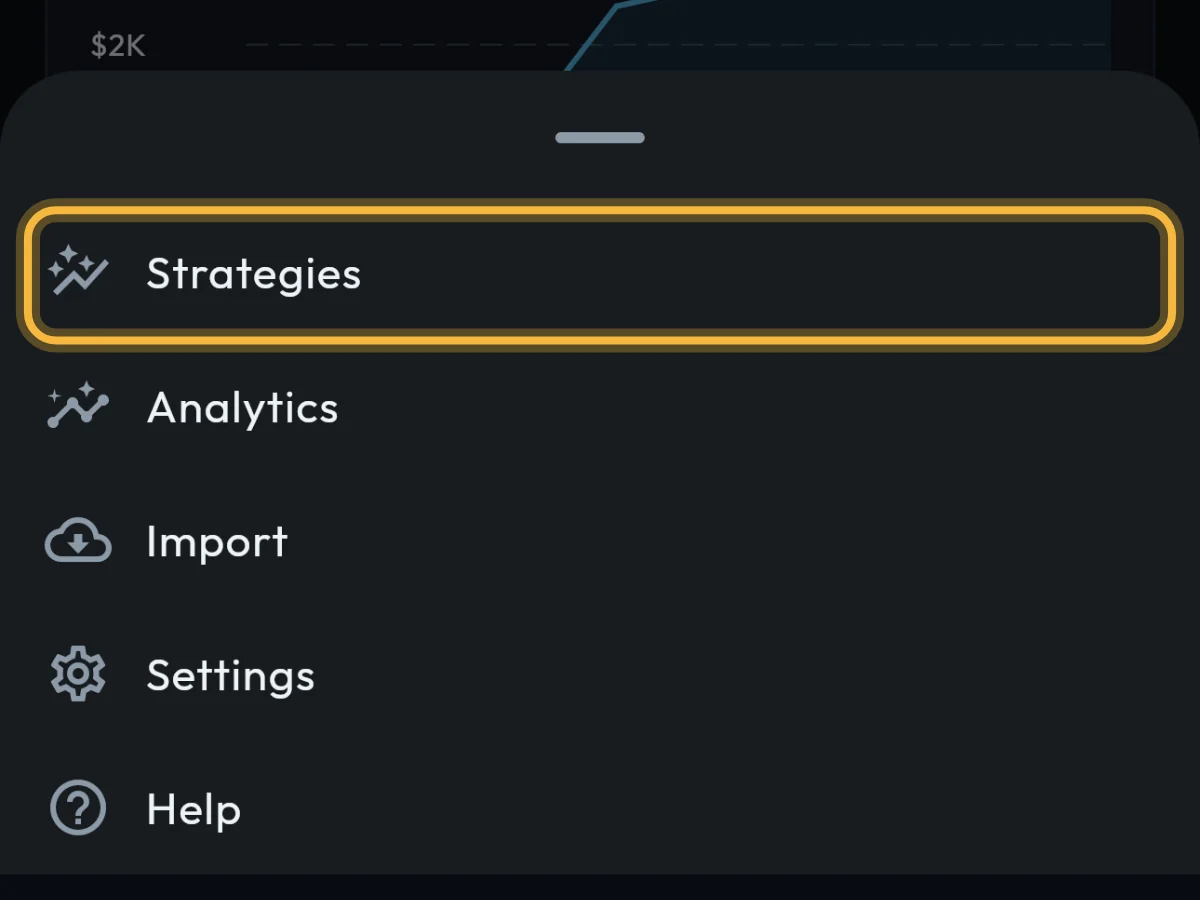
Tap More, then Strategies. On a computer, Strategies is in the menu on the left.
- 2
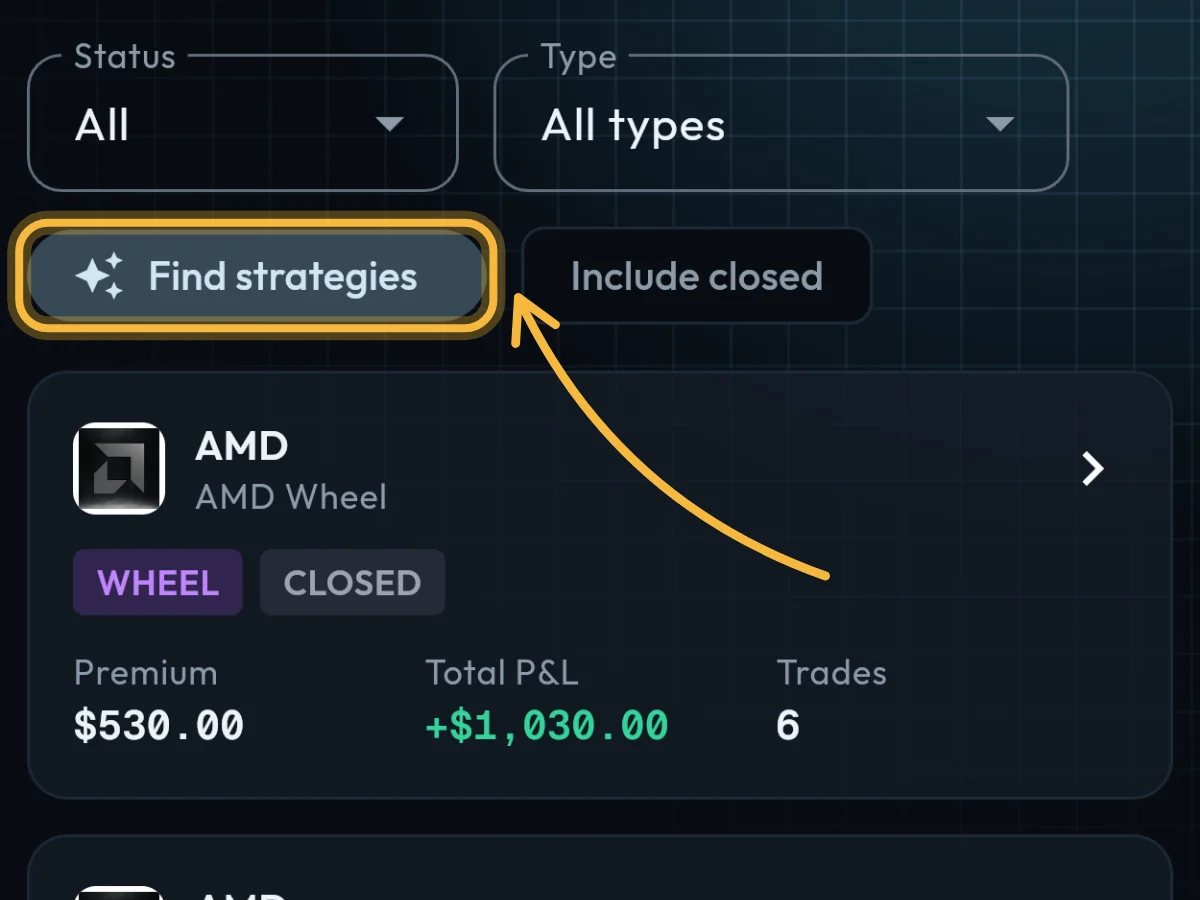
Tap Find strategies. Turn on Include closed first to also look at positions that have finished.
- 3
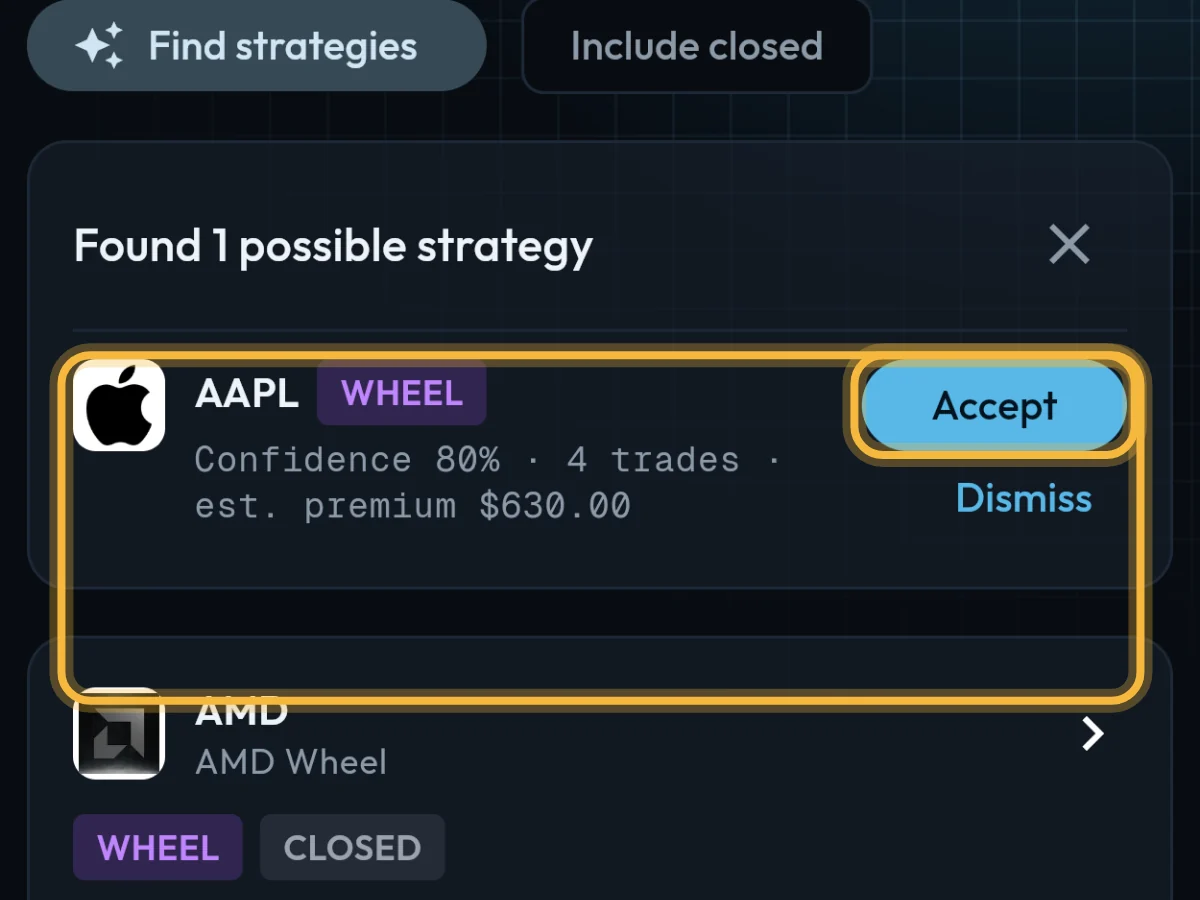
Each suggestion shows the stock, the strategy type, how sure the match is, its trades and the premium. Tap Accept to keep it, or Dismiss.
What you'll see
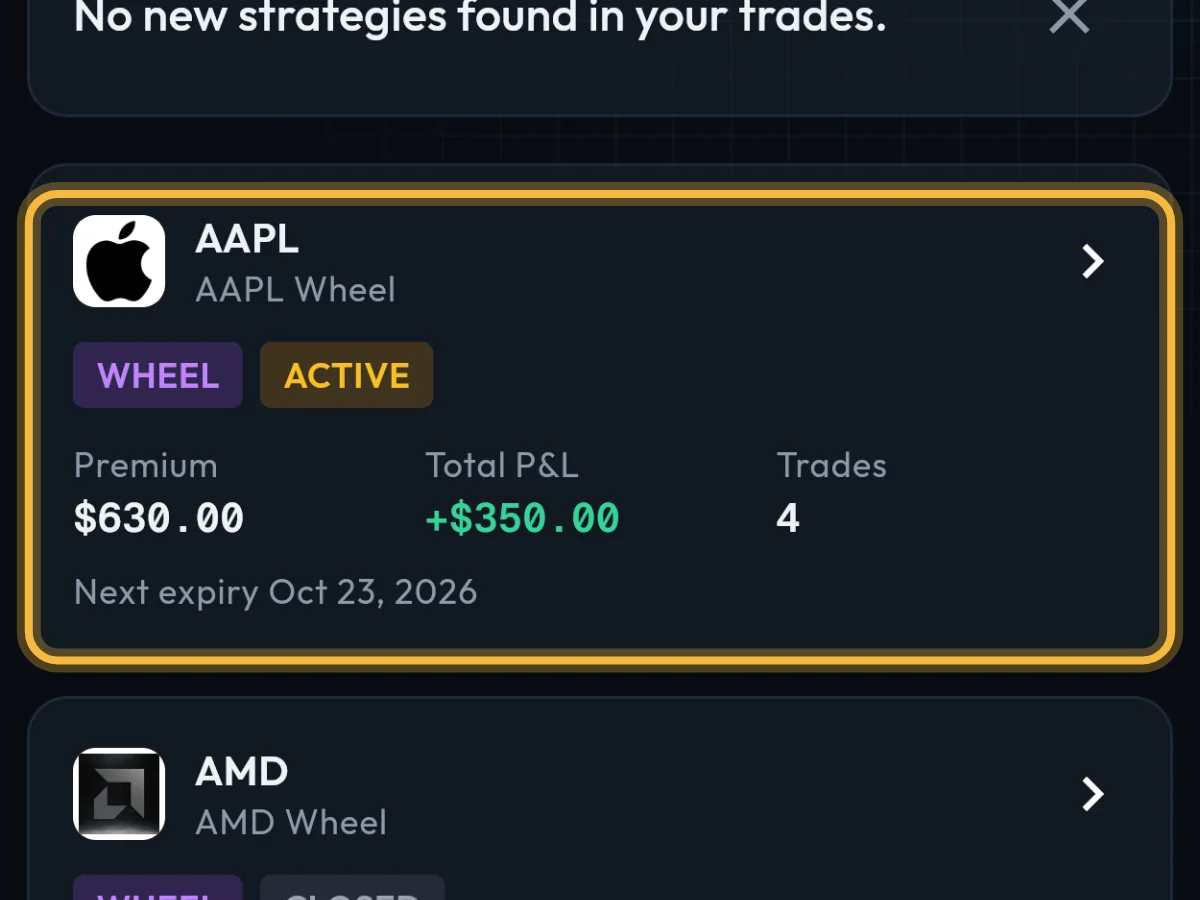
The strategy appears in the list with its Premium, Total P&L, number of trades and next expiry. Tap it to see every trade in it.
- A trade belongs to one strategy at most, so accepted trades are not suggested again.
- New trades from a broker sync are added to your open strategies on their own.
- Wheels and LEAPs are part of Pro. The free plan includes covered calls and cash-secured puts, up to 3 active at a time.
Questions
It found nothing. Why?
By default it only looks at positions that are still open. Turn on Include closed and try again. It also needs the matching trades: for a wheel, the put, its assignment and the shares.
Can I remove a strategy?
Yes. Open it and tap the bin at the top right. Its trades stay in your journal, and Find strategies can suggest it again.
Does accepting change my trades or P&L?
No. It only groups trades that are already there, so you can see them as one position.
Still stuck?
Write to us and say which step went wrong.