How to connect Robinhood
Link your Robinhood account once, and your trades come into Options Vault and sync every night.
4 steps · 29-second video · works on the web and on iPhone
29 seconds, captions on screen
- 1
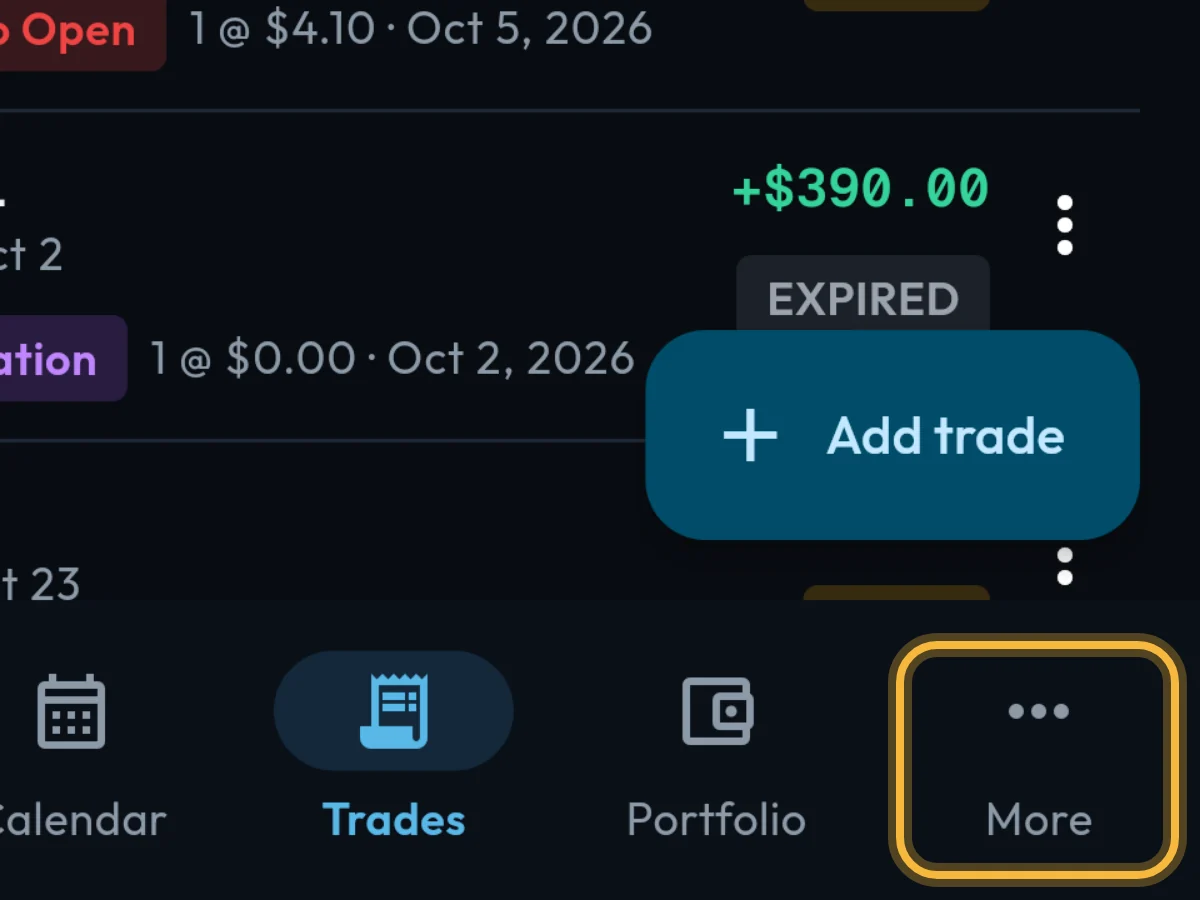
Tap More at the bottom, then Import. On a computer, Import is in the menu on the left.
- 2
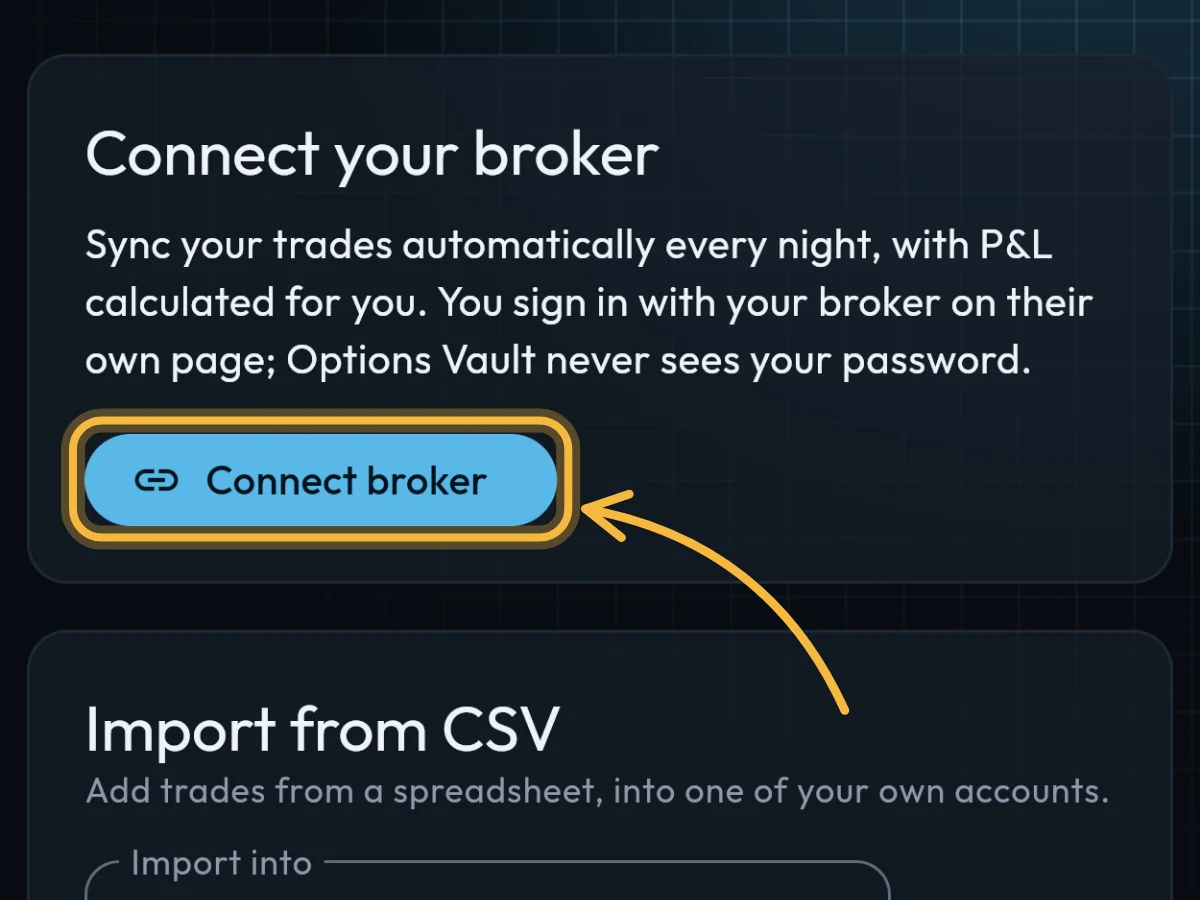
Under Connect your broker, tap Connect broker.
- 3
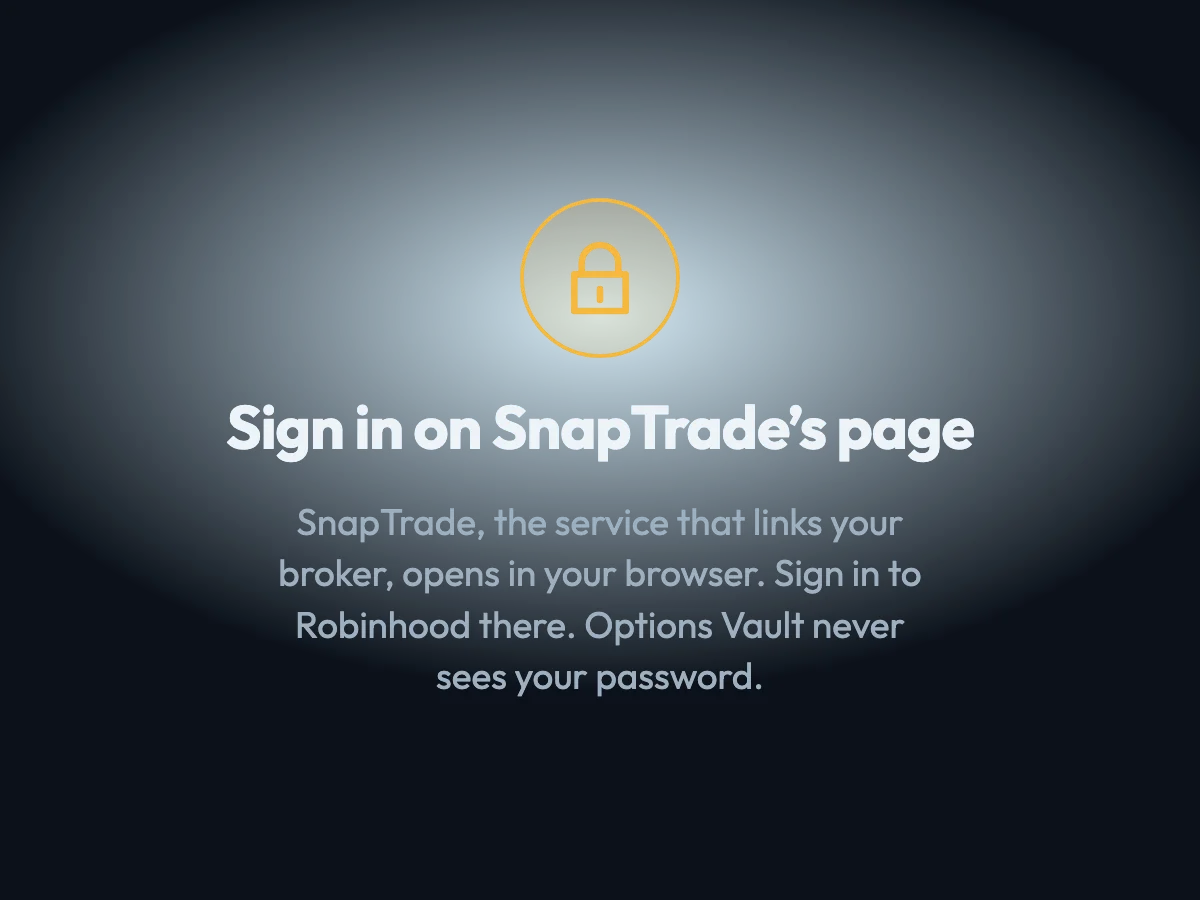
SnapTrade, the service that links your broker, opens in your browser. Sign in to Robinhood there. Options Vault never sees your password.
- 4
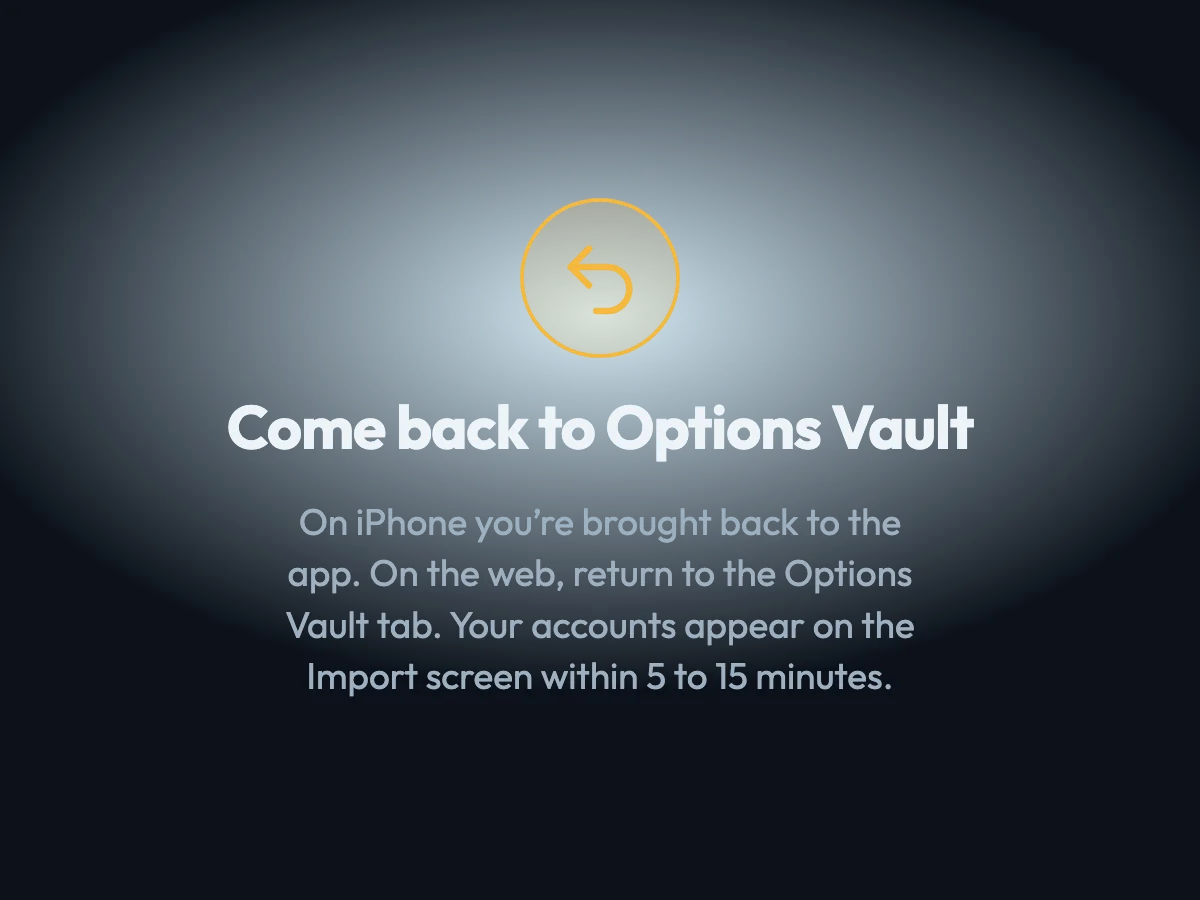
Come back to Options Vault. On iPhone you’re brought back to the app; on the web, return to the Options Vault tab.
What you'll see
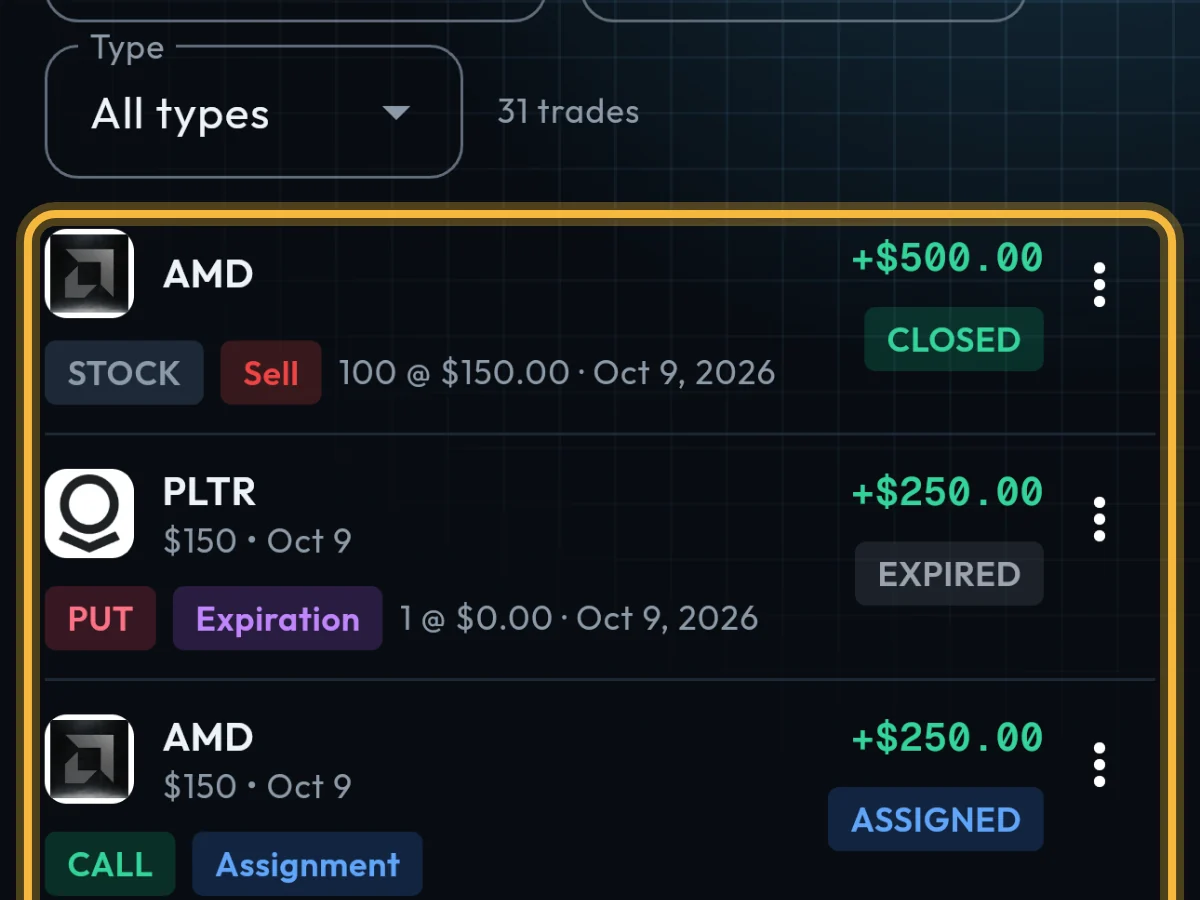
Within 5 to 15 minutes your accounts appear on Import and your trades in Trades. After that, new trades sync every night.
- Broker sync is part of Pro. On the free plan you can add trades by hand or import a CSV file.
- Sync works with Robinhood today. More brokers are planned.
Questions
Can I bring in older trades?
Yes. Once connected, Import has a Look back menu (7 days up to 1 year) and Sync now. For anything older, import a CSV file.
Can Options Vault place trades or move money?
No. It only reads your trade history and positions.
How do I disconnect?
On Import, tap Disconnect. Your trades stay in Options Vault; new ones stop syncing until you connect again.
Still stuck?
Write to us and say which step went wrong.