How to import trades from a CSV file
Bring in trades from any broker or spreadsheet with one file, and Options Vault works out your P&L.
3 steps · 21-second video · works on the web and on iPhone
21 seconds, captions on screen
- 1
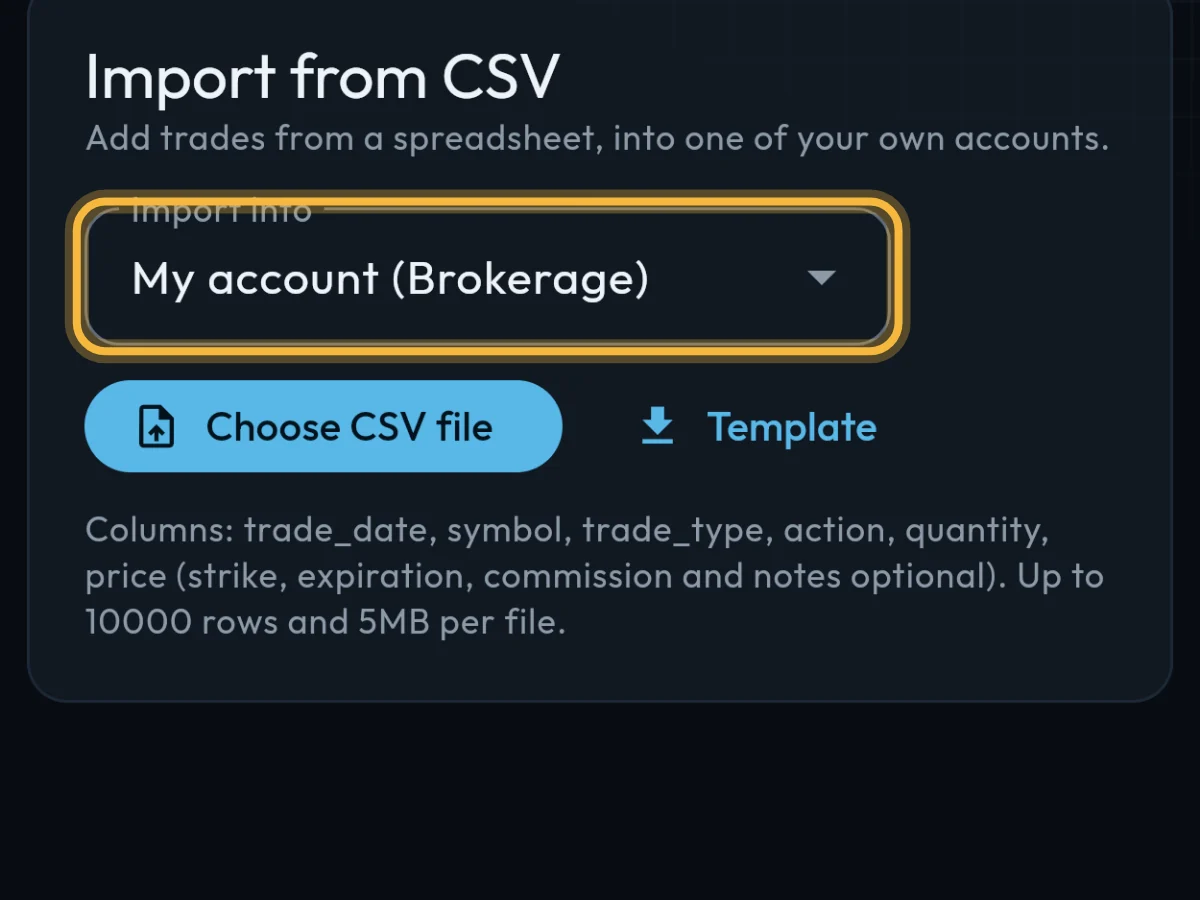
Tap More, then Import. Under Import from CSV, pick the account in Import into.
- 2
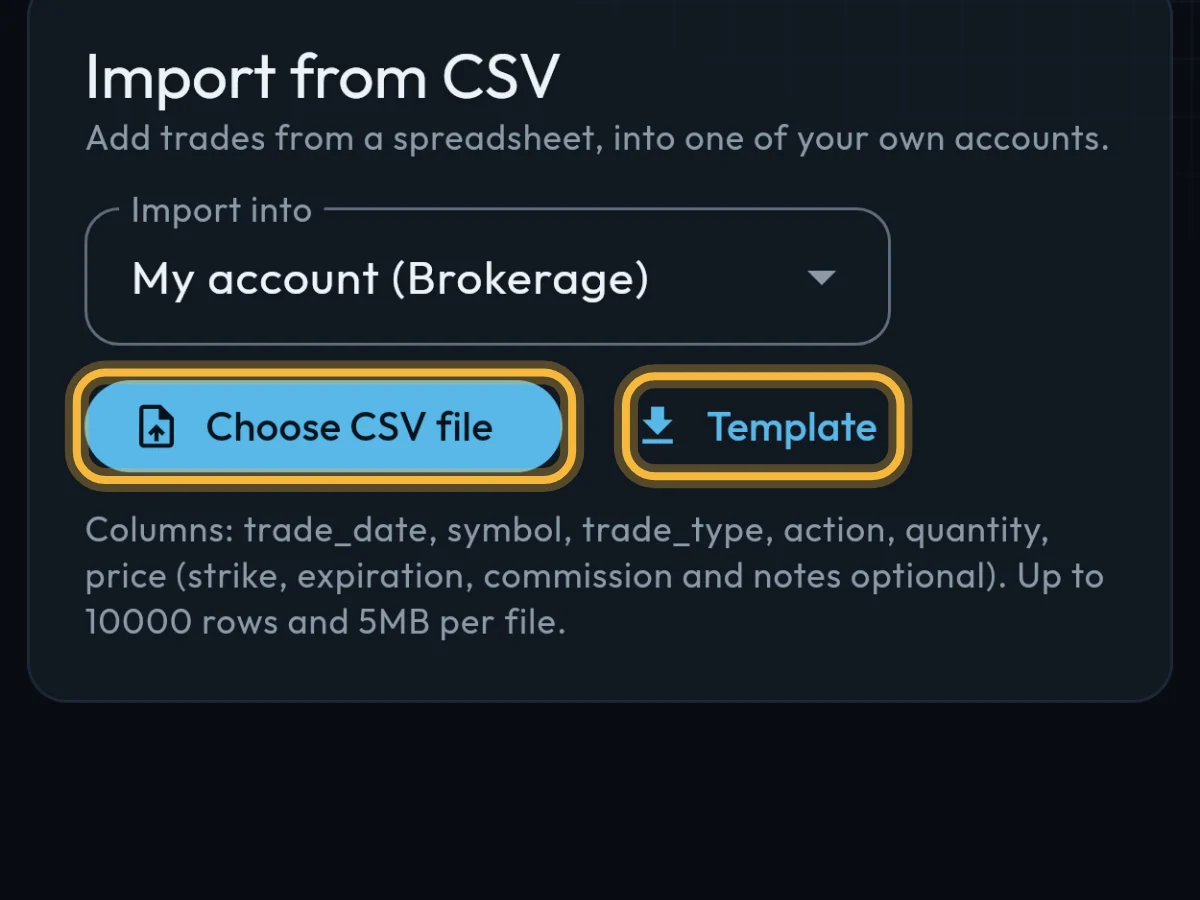
Put your trades in the Template (one row per trade), save it as a .csv file, then tap Choose CSV file.
- 3
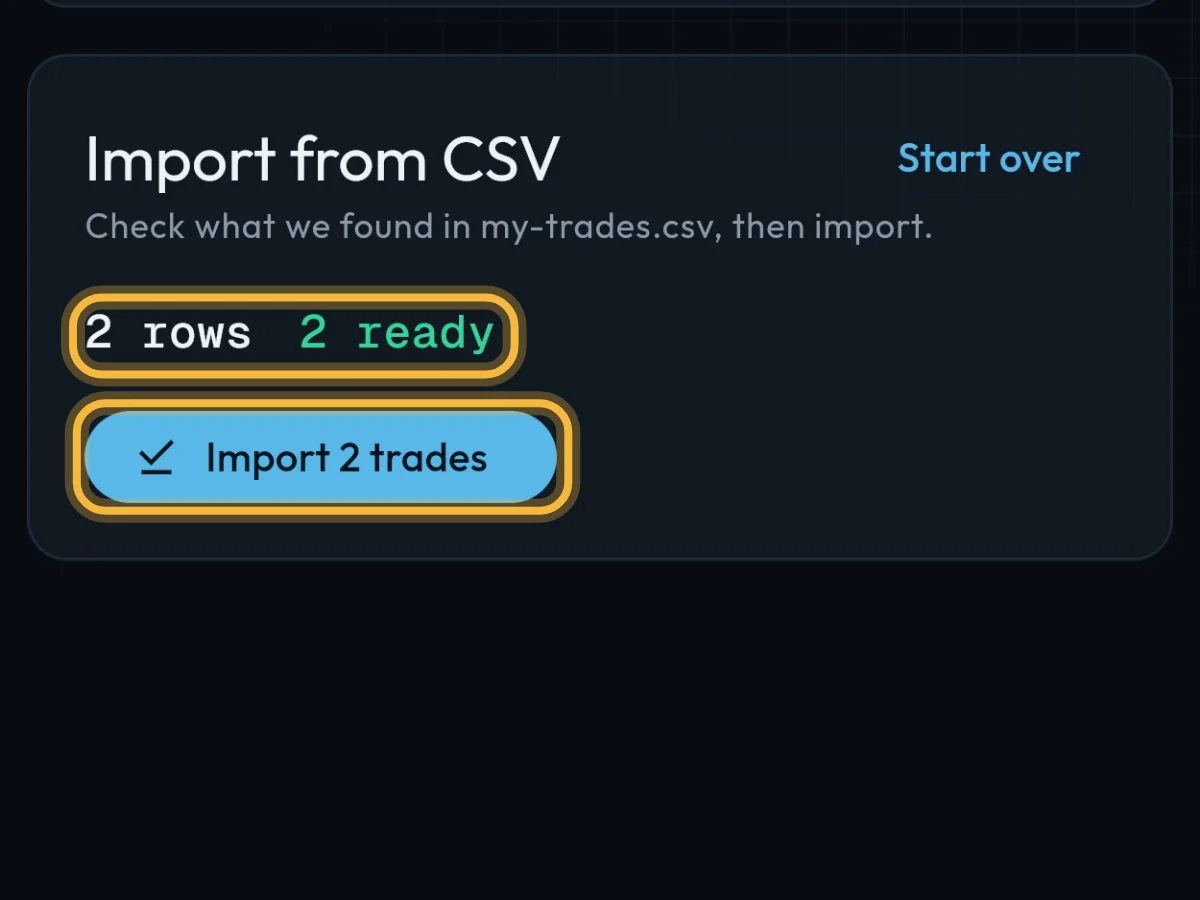
Options Vault checks the file and shows how many rows are ready. Tap Import.
What you'll see
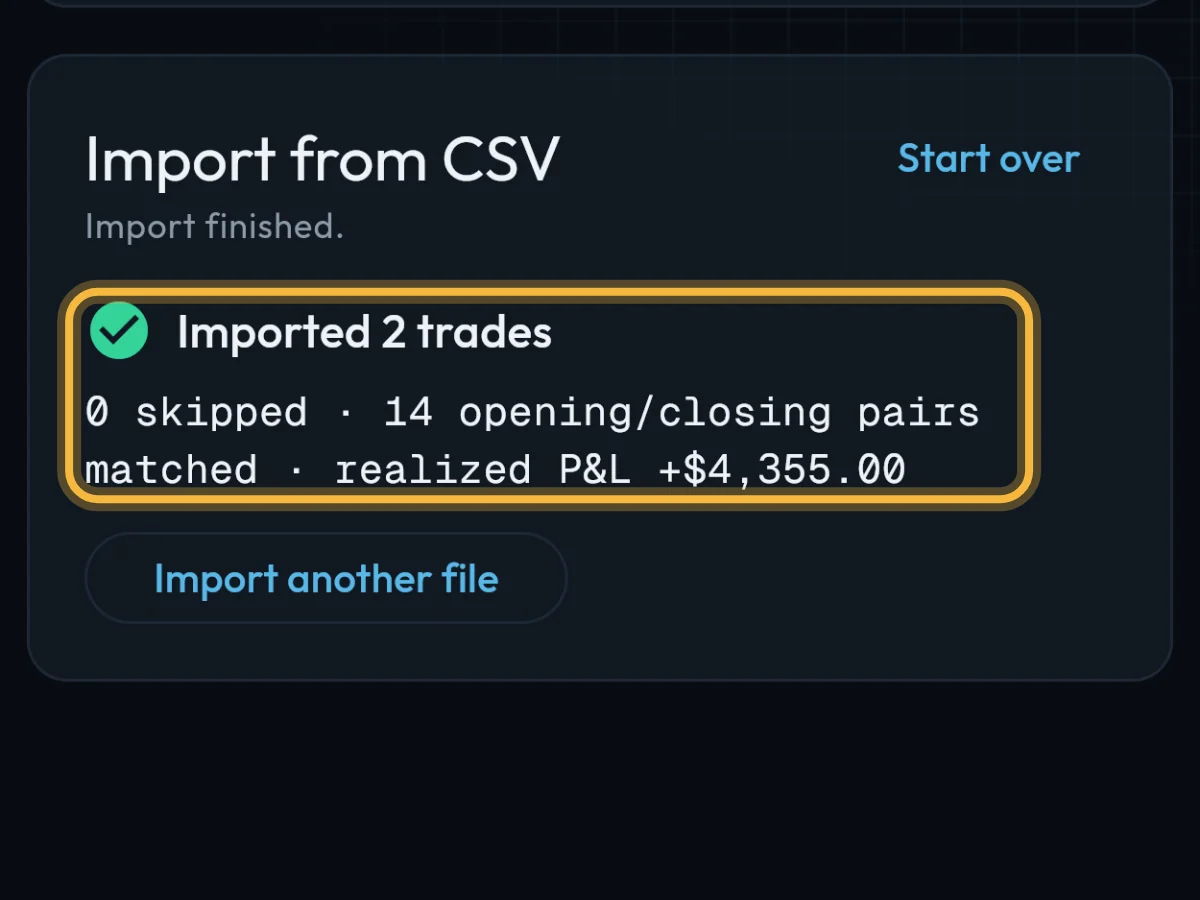
You see Imported with the number of trades. They are in Trades, and the line below shows your account’s realized P&L.
- Required columns: trade_date, symbol, trade_type, action, quantity, price. Strike and expiration are needed for options; commission and notes are optional.
- Actions: BUY and SELL for stock; STO, BTO, STC, BTC, EXPIRED and ASSIGNED for options. Prices are per share.
- Free plan: 2 imports a month, up to 50 rows each. Pro: up to 10,000 rows a file.
Questions
What if some rows have mistakes?
The check lists each row that won’t import and why, before anything is saved. Fix those rows in your file and choose it again.
Will importing the same file twice double my trades?
No. Trades already in Options Vault are found and skipped; you can turn that off on the check screen.
Can I remove imported trades?
Yes. On Trades, tap ⋮ on a row, then Delete.
Still stuck?
Write to us and say which step went wrong.